
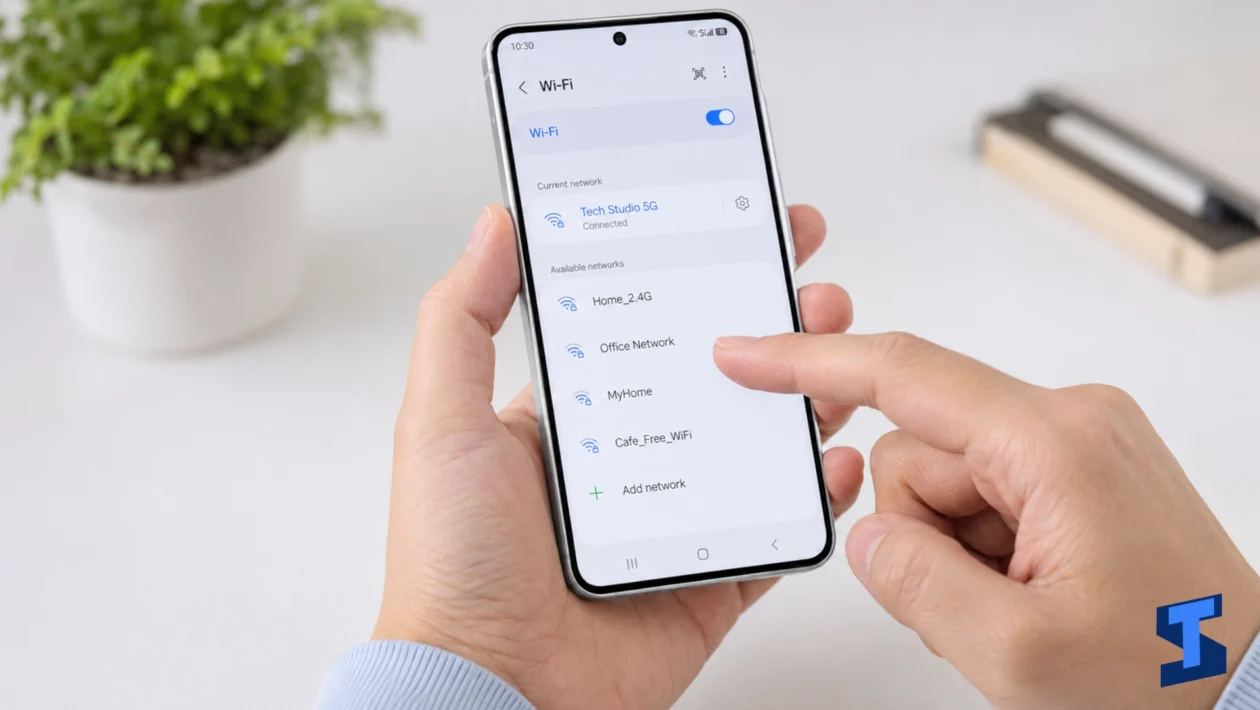
Wi-Fi and Bluetooth problems can make your Galaxy A57 harder to use, especially when you cannot browse online, stream videos, connect to wireless earbuds, pair with a car, or share files with nearby devices. These issues may happen after a software update, after changing network settings, or when your phone has trouble communicating with a router, modem, headset, speaker, smartwatch, or other Bluetooth device.
This page covers the most common Galaxy A57 Wi-Fi and Bluetooth problems and points you to the right guide for each issue. Use this as your starting point if your phone cannot connect to Wi-Fi, keeps dropping the connection, says it is connected but has no internet, or fails to pair with Bluetooth accessories.
For a complete list of device issues, visit the main Galaxy A57 problems and fixes page.
Common Galaxy A57 Wi-Fi and Bluetooth Problems
The Galaxy A57 uses wireless connections for many everyday tasks, including internet access, file sharing, wireless audio, wearable devices, smart home controls, mobile hotspot connections, and car infotainment systems. When Wi-Fi or Bluetooth stops working, the cause may come from the phone, the connected device, the router, the network provider, or a software setting.
Some issues are simple and only need a restart. Others may require forgetting the network, re-pairing the Bluetooth device, updating software, checking permissions, or resetting wireless settings.
Start with the guide that best matches your problem.
Galaxy A57 Wi-Fi Not Working
If Wi-Fi is not working on your Galaxy A57, the phone may fail to find networks, refuse to connect, show an authentication error, or keep asking for the password even when it is correct.
This issue can happen because of a router problem, incorrect password, weak signal, blocked device access, outdated software, or corrupted Wi-Fi settings. It may also happen after a system update or after connecting to a public network.
Before changing advanced settings, restart both your phone and router. Then check whether other devices can connect to the same Wi-Fi network. If only your Galaxy A57 has the problem, the issue is likely on the phone.
Galaxy A57 Wi-Fi Keeps Disconnecting
If your Galaxy A57 keeps disconnecting from Wi-Fi, the problem may be caused by weak signal, router distance, network switching, power-saving settings, Wi-Fi scanning, or a router that is overloaded.
You may notice that the phone connects for a few minutes, drops the connection, then reconnects again. This can interrupt video calls, downloads, streaming, gaming, and app updates.
Try moving closer to the router, forgetting and reconnecting to the network, and checking whether the issue happens on one Wi-Fi network or all networks. If it only happens at home, the router may need to be restarted or updated.
Galaxy A57 Wi-Fi Connected but No Internet
Sometimes your Galaxy A57 may show that it is connected to Wi-Fi, but websites, apps, and online services still do not load. This usually means the phone is connected to the router but the router has no proper internet access.
The problem may come from your internet service provider, modem, router, DNS settings, captive portal login page, VPN app, or private DNS configuration.
First, check if other devices on the same Wi-Fi network can access the internet. If they cannot, restart your modem and router or contact your internet provider. If only your Galaxy A57 is affected, forget the Wi-Fi network and reconnect.
Galaxy A57 Bluetooth Not Working
If Bluetooth is not working on your Galaxy A57, the phone may not detect nearby devices, may fail to connect, or may show paired devices that will not respond.
Bluetooth problems can happen because of outdated software, pairing conflicts, low battery on the accessory, distance, interference, or a corrupted Bluetooth connection. The issue may also come from the accessory itself, especially if it cannot connect to other phones either.
Start by turning Bluetooth off and back on. Then restart your phone and the Bluetooth accessory. If the device was previously paired, remove it from the Bluetooth list and pair it again.
Galaxy A57 Bluetooth Keeps Disconnecting
If Bluetooth keeps disconnecting on your Galaxy A57, wireless audio may cut out, smartwatches may lose connection, or your phone may repeatedly disconnect from your car, speaker, earbuds, or fitness tracker.
This issue may be caused by low battery on the accessory, distance from the phone, signal interference, battery optimization, outdated firmware, or a problem with the Bluetooth device profile.
For earbuds and speakers, check if the issue happens with other audio devices. For smartwatches and fitness trackers, make sure their companion app is allowed to run in the background.
Galaxy A57 Cannot Pair with a Bluetooth Device
Pairing problems happen when your Galaxy A57 cannot connect to a Bluetooth device for the first time or cannot reconnect after being paired before. You may see errors such as “couldn’t pair,” “incorrect PIN,” or “connection failed.”
This can happen when the accessory is not in pairing mode, is already connected to another device, has a full pairing memory, or is too far from the phone.
Put the Bluetooth device into pairing mode again, remove old pairings if needed, and make sure it is not connected to another phone, tablet, laptop, or car system.
Galaxy A57 Reset Wi-Fi and Bluetooth Settings
Resetting Wi-Fi and Bluetooth settings can help when your Galaxy A57 has persistent wireless problems that do not improve after basic troubleshooting. This reset removes saved Wi-Fi networks, paired Bluetooth devices, and some network-related preferences.
It does not erase your photos, apps, contacts, or personal files. However, you will need to reconnect to Wi-Fi networks and pair Bluetooth devices again afterward.
Use this option if Wi-Fi and Bluetooth issues started after an update, after changing settings, or after connecting to multiple networks and accessories.
What Causes Galaxy A57 Wi-Fi and Bluetooth Problems?
Wi-Fi and Bluetooth issues can come from many sources. In most cases, the problem is related to the connection, device settings, router, accessory, or software rather than permanent hardware damage.
Common causes include:
- Incorrect Wi-Fi password
- Weak Wi-Fi signal
- Router or modem problems
- Internet service outage
- Network congestion
- VPN or private DNS issues
- Outdated phone software
- Outdated router or accessory firmware
- Bluetooth pairing conflicts
- Bluetooth accessory already connected to another device
- Low battery on wireless accessories
- Distance or signal interference
- Power-saving settings limiting background connections
- Corrupted network settings
If the problem started after installing an app, updating the phone, changing router settings, or pairing a new accessory, that change may be related to the issue.
What to Try First
Before opening a specific guide, try these quick fixes.
- Restart your Galaxy A57.
- Restart your router, modem, speaker, earbuds, smartwatch, car system, or other connected device.
- Turn Wi-Fi or Bluetooth off, then turn it back on.
- Move closer to the router or Bluetooth accessory.
- Forget the Wi-Fi network, then reconnect.
- Remove the Bluetooth device, then pair it again.
- Check if other devices can connect to the same Wi-Fi or Bluetooth accessory.
- Turn off VPN or private DNS temporarily.
- Check for software updates.
- Make sure Power Saving Mode is not limiting background activity.
- Reset Wi-Fi and Bluetooth settings if the problem continues.
These steps can fix many wireless connection issues without affecting your personal files.
When the Problem May Be Related to Other Galaxy A57 Issues
Some Wi-Fi and Bluetooth problems may be connected to other areas of the phone.
If your Galaxy A57 loses connection when the battery is low or Power Saving Mode is enabled, check the battery problems guide.
If the phone gets hot while using mobile hotspot, Bluetooth audio, or online apps, visit the charging problems page if it happens while plugged in, or the battery guide if it happens during normal use.
If Wi-Fi works but mobile data, SIM, or 5G does not, use the mobile data and SIM guide.
If video calls, online meetings, or voice calls have sound issues, check the sound and call problems page.
If the camera freezes when using online apps or scanning QR codes over Wi-Fi, visit the camera problems page.
If the screen does not respond while entering a Wi-Fi password or Bluetooth PIN, check the display and touchscreen guide.
If the phone freezes, lags, or settings open slowly while managing connections, visit the performance problems guide.
If Find My Mobile or account verification fails because the phone cannot connect online, check the security and lock screen problems page after fixing your connection.
How to Keep Wi-Fi and Bluetooth Stable on Galaxy A57
To keep wireless connections stable, keep your phone updated and avoid changing advanced network settings unless needed. Use strong Wi-Fi signals when possible, restart your router occasionally, and keep your Bluetooth accessories charged.
For Wi-Fi, place your router in an open area and avoid using networks with very weak signal. If your home Wi-Fi is crowded, restarting the router or changing router settings may improve stability.
For Bluetooth, keep your Galaxy A57 near the accessory and reduce interference from other wireless devices when possible. If you use earbuds, watches, speakers, or car systems often, make sure their firmware or companion apps are updated.
You should also avoid installing unknown VPN, cleaner, booster, or connection manager apps that may interfere with Wi-Fi, Bluetooth, or DNS settings.
When Should You Reset Wi-Fi and Bluetooth Settings?
Resetting Wi-Fi and Bluetooth settings is useful when the same problem keeps coming back even after restarting the phone, forgetting networks, or re-pairing devices.
You may need to reset wireless settings if:
- Wi-Fi will not connect to any network
- Wi-Fi keeps disconnecting on multiple networks
- Bluetooth cannot find any device
- Bluetooth devices keep disconnecting
- The phone shows network errors after an update
- Wi-Fi says connected but apps do not load
- Bluetooth pairing fails with different accessories
After the reset, reconnect to your Wi-Fi network and pair your Bluetooth devices again. This is usually safer than a factory reset because it does not delete your personal files.
Final Thoughts
Galaxy A57 Wi-Fi and Bluetooth problems can usually be fixed by checking the network, restarting devices, forgetting and reconnecting, updating software, or resetting wireless settings. The best fix depends on the exact issue you are experiencing.
If Wi-Fi is not working, start with your router and saved network settings. If Bluetooth will not connect, check pairing mode, distance, accessory battery, and old pairings. If the problem affects many networks or devices, resetting Wi-Fi and Bluetooth settings may be the best next step.
Choose the guide that matches your issue so you can get your Galaxy A57 connected again.
Frequently Asked Questions
Why is my Galaxy A57 Wi-Fi not working?
Your Galaxy A57 Wi-Fi may not work because of an incorrect password, weak signal, router problem, software glitch, VPN conflict, private DNS issue, or corrupted Wi-Fi settings. Restart your phone and router first, then forget the network and reconnect.
Why does my Galaxy A57 keep disconnecting from Wi-Fi?
Your Galaxy A57 may keep disconnecting from Wi-Fi because of weak signal, router distance, network congestion, power-saving settings, or router firmware problems. If the issue happens only on one network, the router may be the cause.
Why is my Galaxy A57 connected to Wi-Fi but has no internet?
This usually means your phone is connected to the router, but the router or internet service is not working properly. Check if other devices can access the internet. If only your Galaxy A57 is affected, forget the Wi-Fi network and reconnect.
Why is Bluetooth not working on my Galaxy A57?
Bluetooth may not work because the accessory is not in pairing mode, is already connected to another device, has low battery, or has a corrupted pairing record. Turn Bluetooth off and on, restart both devices, then remove and pair the accessory again.
Why does my Galaxy A57 Bluetooth keep disconnecting?
Bluetooth can keep disconnecting because of distance, low accessory battery, wireless interference, outdated firmware, or battery optimization settings. Keep the accessory near your phone and make sure its companion app can run in the background.
Why can’t my Galaxy A57 pair with my earbuds or speaker?
Your earbuds or speaker may not be in pairing mode, may still be connected to another device, or may have reached its pairing memory limit. Reset the accessory if needed, then pair it again from your Galaxy A57 Bluetooth settings.
Will resetting Wi-Fi and Bluetooth settings delete my files?
No. Resetting Wi-Fi and Bluetooth settings will not delete your photos, apps, contacts, messages, or personal files. It will remove saved Wi-Fi networks, Bluetooth pairings, and some network preferences, so you will need to reconnect afterward.
Should I reset all settings or only Wi-Fi and Bluetooth settings?
Start with resetting Wi-Fi and Bluetooth settings if the problem is only related to wireless connections. Reset all settings only if multiple system settings are misconfigured or if wireless problems continue after basic troubleshooting.
Can Power Saving Mode affect Wi-Fi and Bluetooth?
Yes, Power Saving Mode may limit some background activity, syncing, or app connections. It usually does not turn off Wi-Fi or Bluetooth completely, but it can affect apps that rely on constant background connection, such as smartwatches or Bluetooth companion apps.